Teams Notifications
As an Admin or a Device Manager you can set up your Notification Center to deliver notices from Poly Lens, to a Microsoft Teams channel.
Microsoft Teams
Note: Teams Notifications have been updated to support the new Microsoft Teams Power Automate workflows. Legacy Microsoft Teams webhooks have been deprecated and are no longer supported. A Microsoft Teams channel and a configured Power Automate to Workflows are required. Power Automate Premium licensing is required. See Teams Channel Workflow Power Automate Configuration for detailed instructions.
- Go to the ACCOUNT menu > Manage All Accounts.
- Select an account from the list that will host this notification.
- Select Notifications > Microsoft Teams from the side tabs.
- Select Add New.
- Enter the Name of the New Microsoft Teams Workflow.
- Enter the Workflow URL of the Microsoft Teams channel. See Teams Channel Workflow Power Automate Configuration for the Workflow URL.
- Select (enable) the Notification Types to send to the Microsoft Teams channel.
- Select the Frequency from the dropdown list.
- Select Test Connection to verify all is working correctly with the configuration. See Test Connection below for detailed information.
- Select Create to complete the setup. The Microsoft Teams Channel information will display.
Notification Types
You can configure the notification to fit your needs.
Software Update Available
When this option is enabled, you will be sent a notice that a new version of software is available. The system will check for this update at the frequency that is set below and will send a notice if a new software update is available.
Frequency
The following frequencies are available for this option:
- Daily Roundup
- Weekly Roundup
- Immediately
Devices Offline
When this option is enabled, you will be sent a notice that devices are offline with information on each device. A link to the Poly Lens Offline Insight is provided in this notice to see the entire list of devices and additional information. The system will check for this update at the frequency that is set below.
Note: The Device Offline option supports any device that is provisionable, except Poly Studio USB, Poly EagleEye Cube, and Poly Studio R30.
Frequency
The following frequencies are available for this option:
- Daily Roundup
- Weekly Roundup
Notification Model for Daily/Weekly Roundup Reports
The Devices Offline Daily and Weekly Roundup reports are based on Offline events, not the length of time a device remains offline or its current connection state.
Offline Event Criteria
- No minimum offline duration applies.
- Any transition from Online to Offline state is counted as an Offline event, regardless of how brief the interruption is.
All disconnects are counted equally.
- A device that is Offline for several minutes and reconnects is treated the same as a device that's Offline momentarily.
Additionally, the following intervals are available for Devices Offline.
The frequency times will send a notification when the device is offline for this increment of time. For example, if the 30 minutes option is selected and a device is offline for 30 consecutive minutes, then the user will then receive a notification in the configured Teams channel with the device's information.
- 15 minutes
- 30 minutes
- 1 hour
- 2 hours
- 4 hours
- 6 hours
- 12 hours
Note: When a group of devices go offline at a close interval of time, the notification will list the first 10 devices and note how many additional are offline. Click the View all in Poly Lens for the complete list.
Notification Model for Intervals (15 minutes to 12 hours)
Intervals are evaluated only when a device goes offline. If a device does not go offline during the day, there is no interval-based offline tracking triggered for that device.
Poly Lens tracks a device’s offline/online state over the course of the interval. When a device first transitions offline (since the last notification for that device), Poly Lens begins tracking that device’s state changes during the configured interval window.
The last observed state in the interval determines inclusion. At the end of the interval, Poly Lens evaluates the device’s most recent (“last seen”) state:
- If the device was last seen offline during the interval, it will be included in the notification.
- If the device was last seen online during the interval, it will not be included in the notification.
Licenses Expiring
When this option is enabled, you will be sent a notice that a license is expiring. The notice will be sent 30 days before the expiration of the license. A link to the Poly Lens Managing Licenses page is provided for more information. The system will check for this update at the frequency that is set below.
Frequency
The following frequencies are available for this option:
- Daily Roundup
- Weekly Roundup
Test Connection
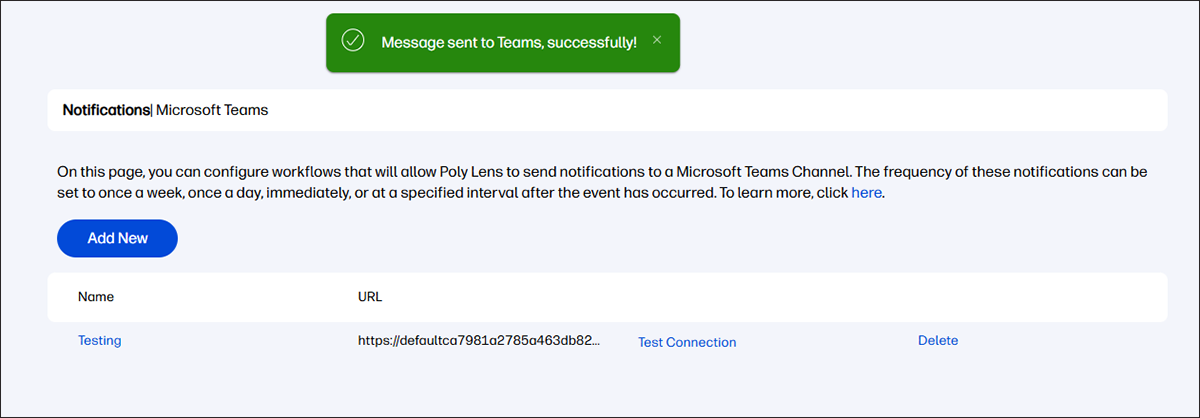
To test the connection configured for the Microsoft Teams Channel.
- Select Test Connection with the associated the Microsoft Teams Channel.
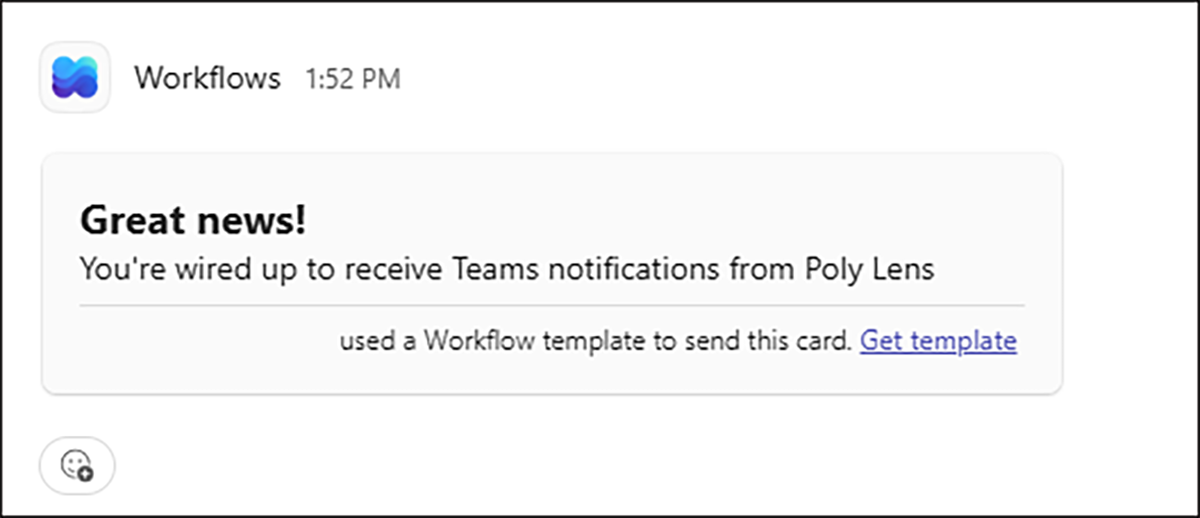
- If set up correctly, a Message sent to Teams successfully will appear. A sample message will be sent to the Teams Channel, for verification.
- If there is an issue, walk through the procedure again, and correct as needed.
Teams Channel Workflow Power Automate Configuration
Create a Workflow Power Automate
To add an Incoming Workflow Power Automate to a Teams channel, follow these steps:
- Go to https://make.powerautomate.com/.
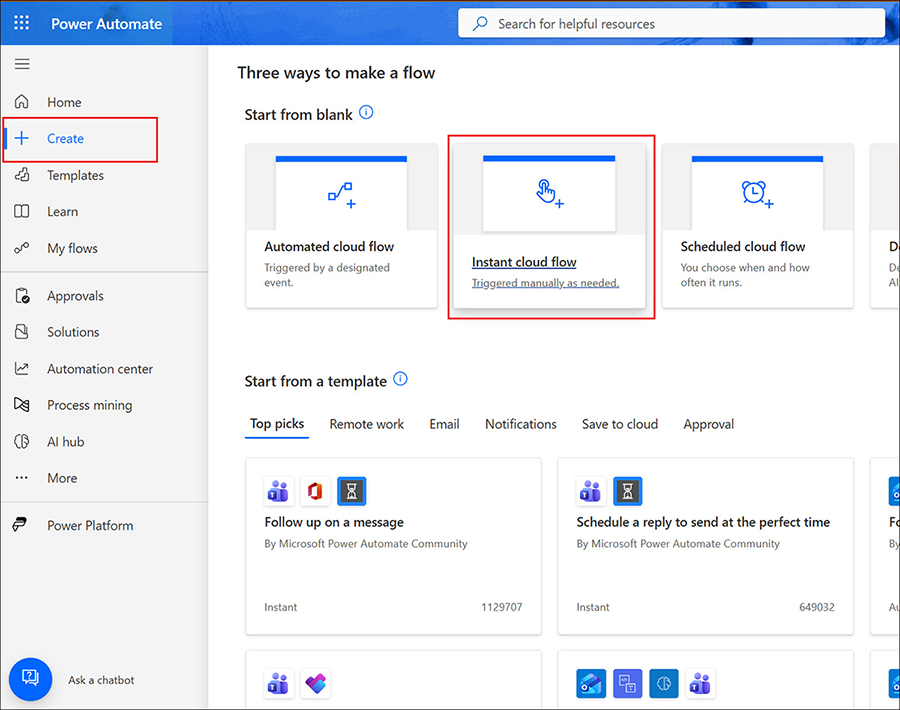
- Select Create > Instant Cloud Flow.
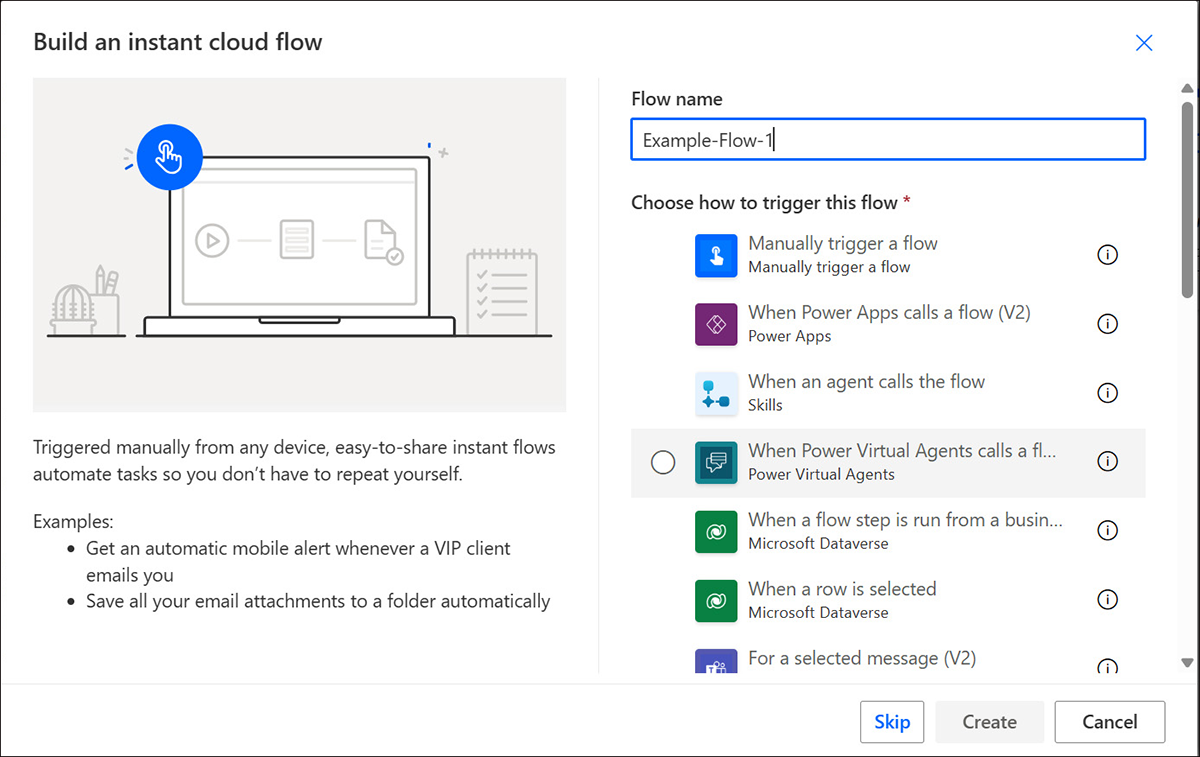
- From Build an instant flow modal, Name your Flow.
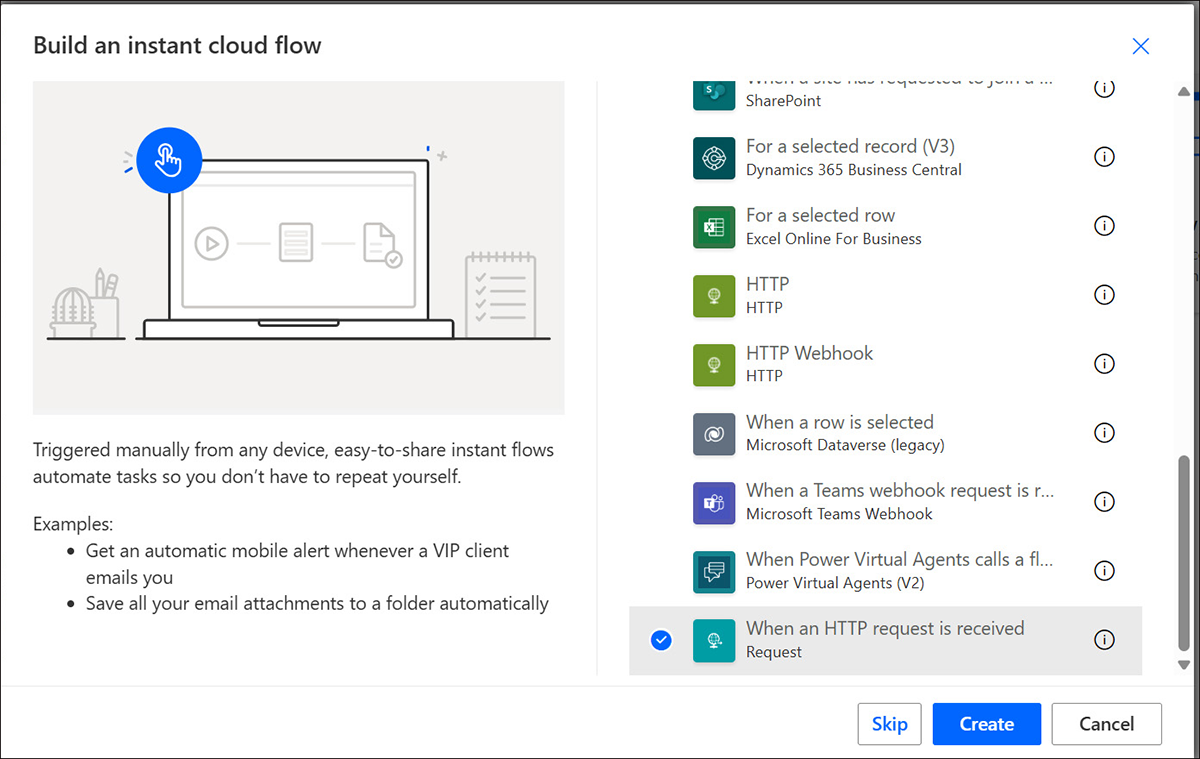
- Select the When a HTTP request is received option at the bottom of the list, and select Create.
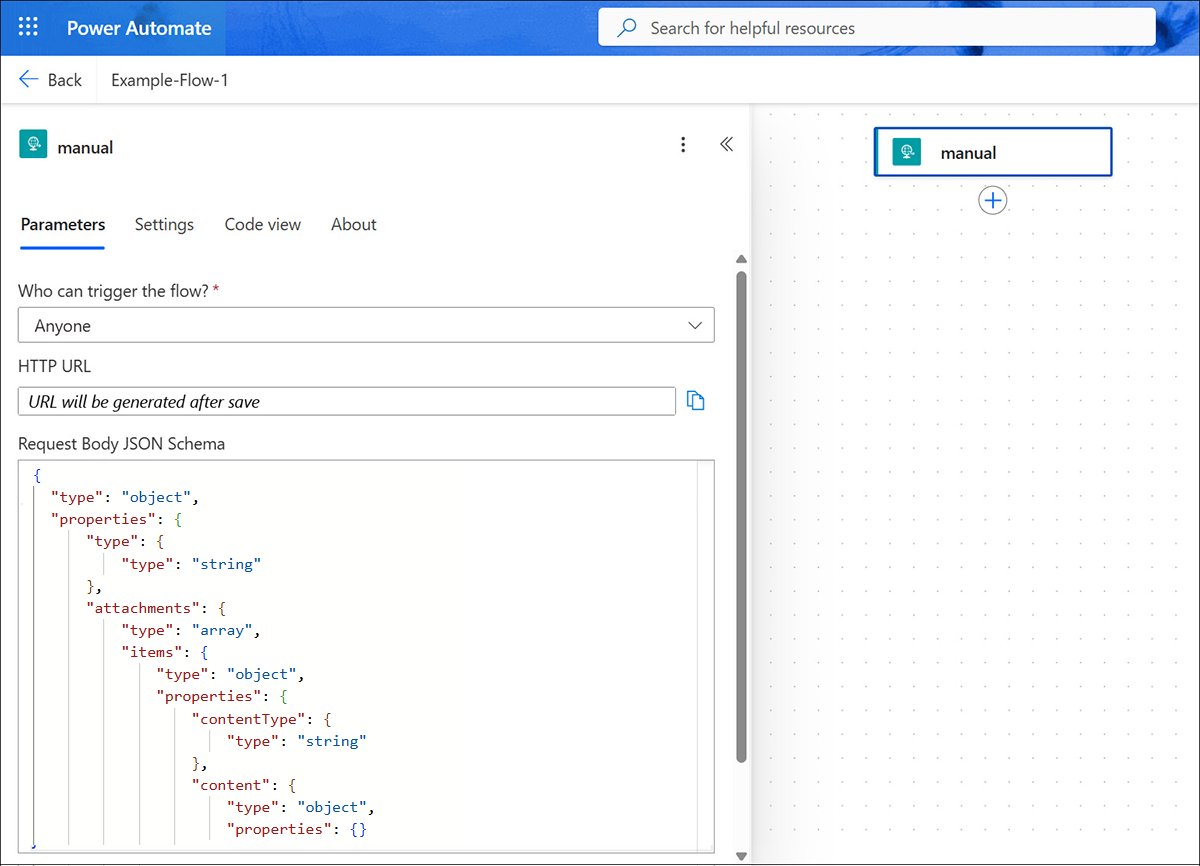
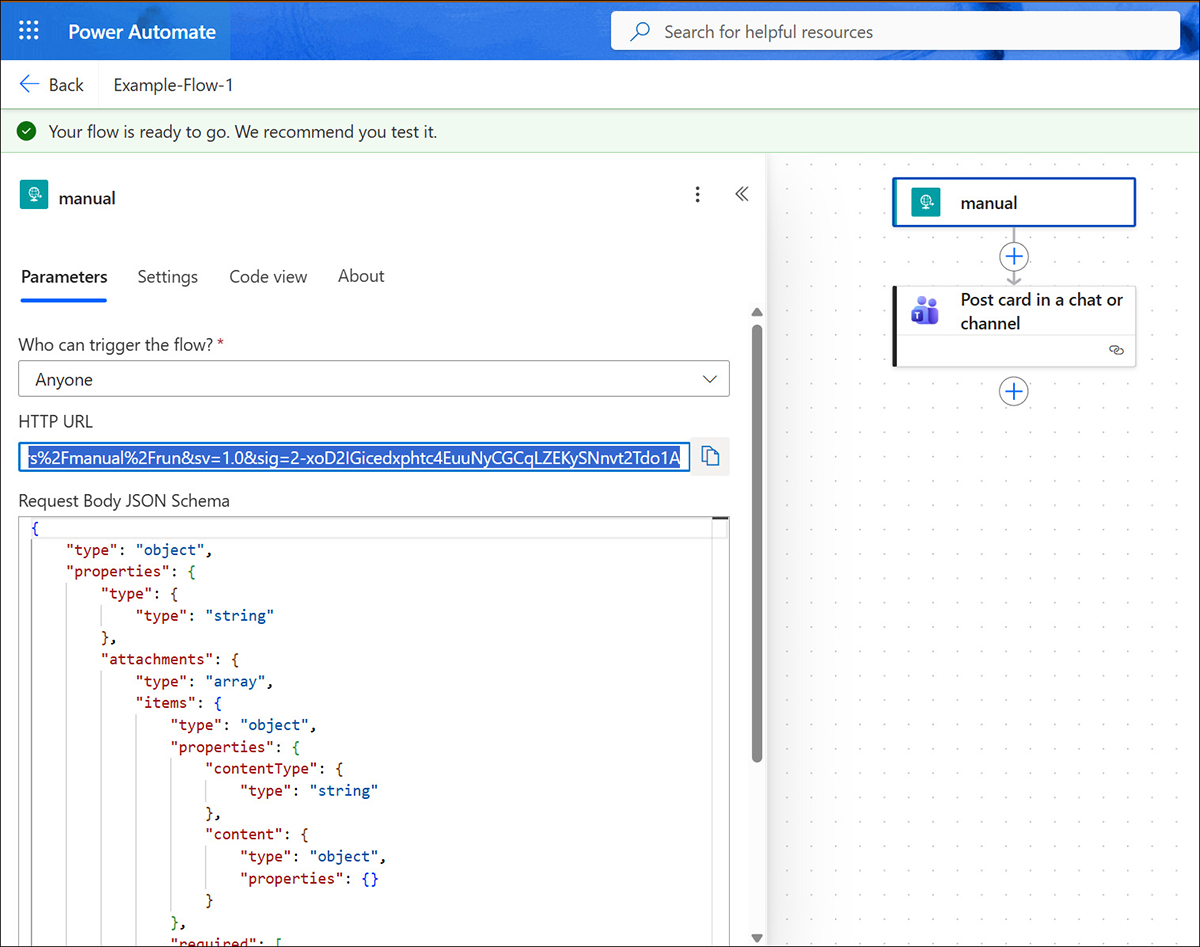
- Select Manual and enter Parameters.
- Who can trigger the flow?: Select Anyone.
- Request Body JSON Schema: Copy and paste the following JSON schema into the field.
{
  "type": "object",
  "properties": {
      "type": {
          "type": "string"
      },
      "attachments": {
          "type": "array",
          "items": {
              "type": "object",
              "properties": {
                  "contentType": {
                      "type": "string"
                  },
                  "content": {
                      "type": "object",
                      "properties": {}
                  }
              },
              "required": [
                  "contentType",
                  "content"
              ]
          }
      }
  }
}
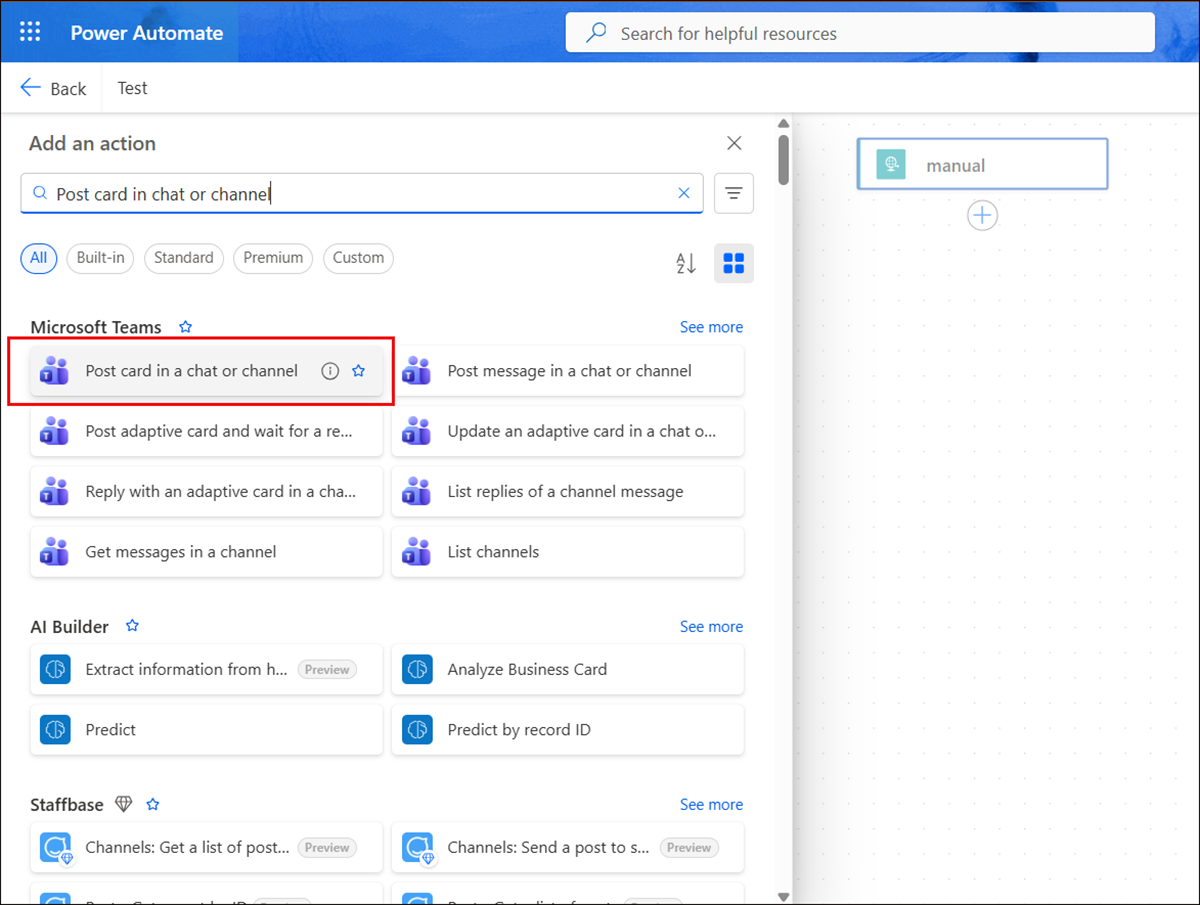
- Select the + (add icon) below the Manual card to add a new step. Search for Post card in a chat or channel and select the option.
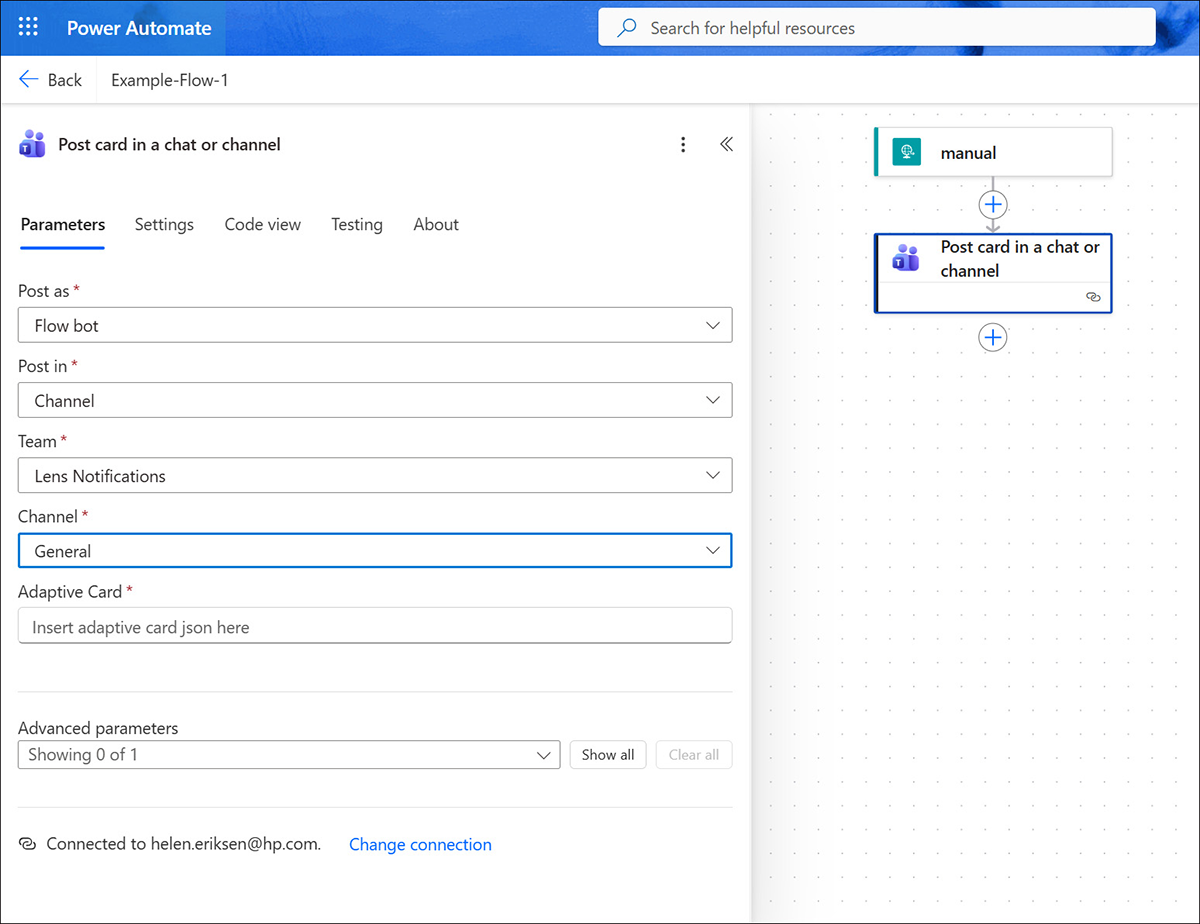
- Enter the following information for the Post card in a chat or channel card.
- Post as: Select Flow bot.
- Post in: Select Channel.
- Team: Select the Team you want to post the notification to.
- Channel: Select the Channel you want to post the notification to.
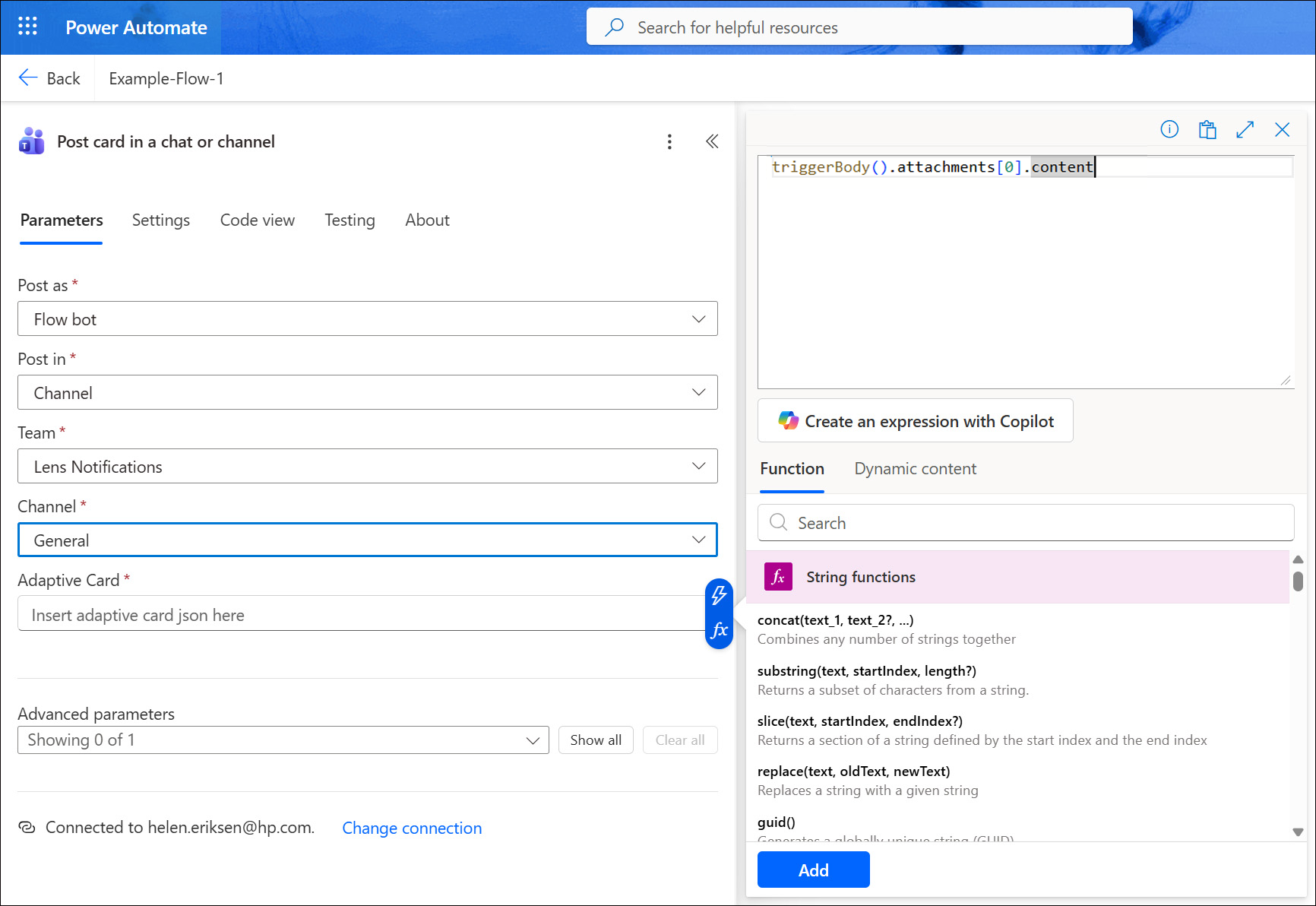
- Adaptive Card: Select the fx button to the right of the input box.
Enter triggerBody().attachments[0].content, and select Add.
- Save the Workflow, by selecting Save at the top right of the page.
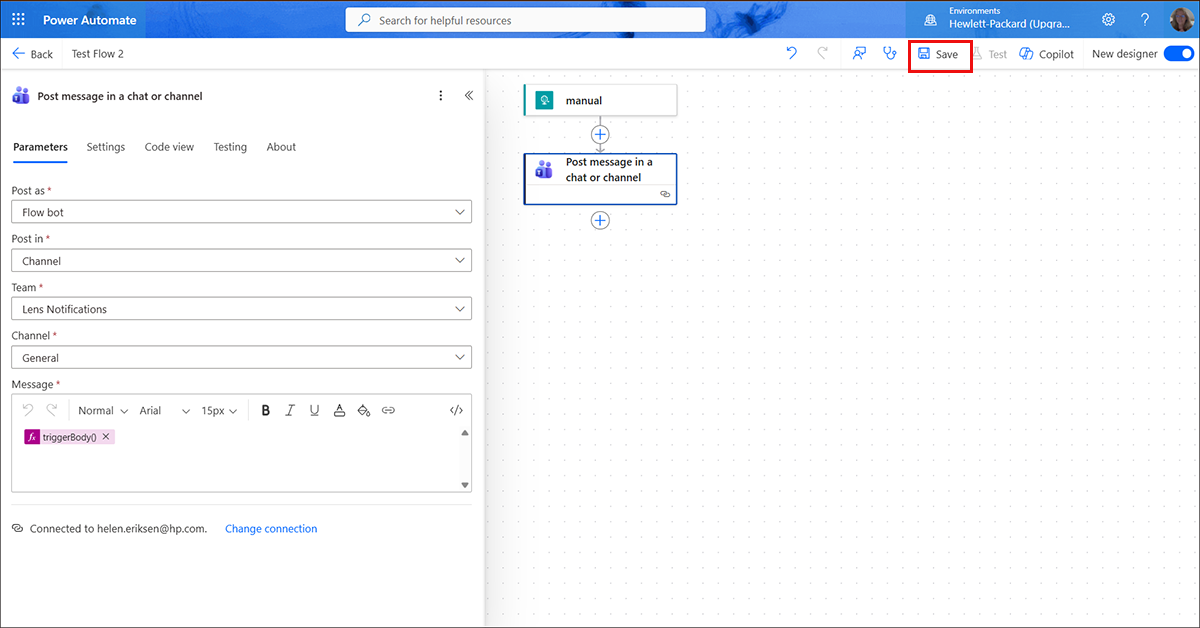
- Select Manual again, and copy the HTTP POST URL that was generate after the save. This will be used when configuring your teams notification in Poly Lens.
- Update the Power Automate URL link in Poly Lens Notifications - Microsoft Teams. Update the Name and enter the URL Power Automate URL .
- Enable Notification Type with available intervals: Software Updates Available, Devices Offline, and Licenses Expiring.
- Test Connection and Save.
- Go to Workflows in Microsoft Teams Channel and confirm that Your Workflows with the Flow generated with the name you entered above is show active here.